Wake Your PC from Anywhere with an ESP32 and Telegram
This post is also available in ID
series: home-lab · 1/1▾ view
The Story
My main PC is at home. It currently runs CachyOS and is connected to the router with a LAN cable. The problem is, I like building labs on my home PC, but when I’m out or at the office, how do I reach the lab at home? Leaving the PC on all day feels like a waste of electricity, but turning it off means I can’t reach it at all. And asking someone at home to switch it on for me is a hassle.
The classic solution is Wake-on-LAN (WoL): a PC that is off can be switched on over the network by sending a special packet called a magic packet. The catch is that my router is a TP-Link TL-MR100 on a 4G network, and like most cellular connections in Indonesia, it sits behind CGNAT. That means I have no public IP, no port forwarding, and no way to send a packet from the internet straight into my home network.
So I needed something that is always on inside the home network. I settled on the ESP32-C3 SuperMini, on the recommendation of a colleague at work. It’s a tiny board with Wi-Fi that just plugs into a phone charger. I send commands to it through a Telegram bot, because the app is already on my phone and I don’t have to build an app of my own.
In this post I want to share how I built it, from planning and the challenges I ran into, to the test results on real hardware. Okay, let’s get started.
The Design: Every Connection Goes Out
The key to the design is simple: the ESP32 never waits for incoming connections. It is the one actively asking the Telegram server, “any new messages for me?”, using a technique called long polling. Because every connection goes from inside the home to the outside, CGNAT is not a problem at all, and not a single port is open on the home network.
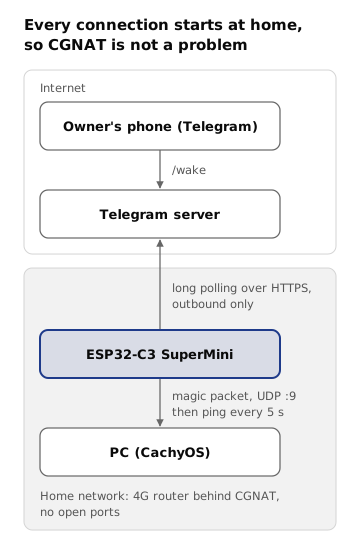
The arrow from the ESP32 to the Telegram server points outward: the ESP32 fetches the message, Telegram does not send anything into the home.
The flow goes roughly like this:
- I send
/waketo the bot from my phone, wherever I am. - The message is stored on the Telegram server.
- The ESP32, which keeps long polling over HTTPS, receives the message a moment later.
- The ESP32 checks whether the sender is me. If not, the message is ignored.
- The ESP32 sends a magic packet to the local network via UDP broadcast on port 9.
- The PC’s network card recognizes the packet and powers the PC on.
- The ESP32 pings the PC every 5 seconds, then lets me know on Telegram as soon as the PC is detected online.
Besides Telegram, a wake can also be triggered from the BOOT button on the board and from the USB console. These local paths are deliberately independent of Telegram, so they keep working even when the internet is down.
How I Worked: Spec First, Code Later
I built this project together with Claude Code using a spec-driven development approach with Spec Kit. The flow is: constitution → spec → plan → tasks → implementation. The constitution holds five principles that bind every decision, and the two most influential ones are security first and outbound connections only.
I also split the work into two features:
- 001 — Local Wake-on-LAN. The ESP32 can power on the PC from the button and the console, check the PC’s status, and recover on its own when Wi-Fi drops.
- 002 — Control via Telegram. Only started once 001 was proven to work on the hardware.
This split turned out to be the right call. If I had gone straight to Telegram and the PC didn’t power on, I wouldn’t know whether the problem was in the BIOS, the network, the ESP32, or the bot.
For development, I didn’t install the Arduino IDE. Everything uses PlatformIO running inside a Docker container through a small script called ./pio, so my laptop stays clean:
./pio test -e native              # pure logic unit tests on the laptop
./pio run -e supermini -t upload  # build + flash to the ESP32
Logic that doesn’t need hardware, such as building the magic packet, parsing Telegram responses, the allowlist, and even the bot’s reply texts, I moved into a pure C++ library that is tested on the laptop. By the end of the project there were 54 unit tests, and all of them run without the ESP32 plugged in.
Stage 1: Local Wake-on-LAN
Make sure the PC can be woken first
Before touching the ESP32, I made sure the PC could actually be woken from my laptop. On the ASRock B850M-X, the settings are under Advanced → ACPI Configuration: enable PCIE Devices Power On and disable Deep Sleep. On CachyOS, WoL needs to be enabled on the NetworkManager connection so it survives a reboot:
nmcli connection modify <connection> 802-3-ethernet.wake-on-lan magic
First trap: the br0 bridge
My PC uses a br0 bridge as its main interface, and this is where the first trap appeared. The MAC address shown in ip link for br0 is not necessarily the MAC of the physical network card. Yet the magic packet must contain the physical MAC, because what “listens” while the PC is off is the network card, not the bridge in the operating system. The right MAC can be found with:
sudo ethtool -P <physical-interface-name>
Once the MAC was right, the PC woke up from my laptop using a small Python script. Only then did I move on to the ESP32.
Second trap: a blank board that keeps rebooting
As soon as I plugged in the brand-new ESP32-C3 SuperMini, its USB port appeared and disappeared about every 2 seconds. It turned out the board’s flash was still empty (invalid header: 0xffffffff), so the chip kept rebooting, and every reboot made the USB port vanish and come back. A normal upload always failed because the port was gone before it could start.
The manual trick of holding BOOT while pressing RST didn’t work in my attempts. What finally worked was “racing” the board: a script waits for /dev/ttyACM0 to appear, then immediately runs esptool with --before usb-reset. It succeeded on the first try, and once the firmware was installed, normal uploads worked fine.
Stage 1 firmware
The firmware itself is fairly simple:
- A 102-byte magic packet (6 bytes of
0xFFfollowed by the target MAC repeated 16 times), sent 3 times to the subnet broadcast address. - After a wake, the ESP32 pings the PC every 5 seconds for up to 3 minutes to confirm the PC really powered on.
- Wi-Fi reconnects automatically with a backoff of 1 to 30 seconds, and the board restarts itself if it stays disconnected for 10 minutes.
- A 30-second watchdog: if the program hangs, the ESP32 restarts itself.
- Wi-Fi TX power is lowered to 8.5 dBm, because many SuperMini units fail to connect at full power due to their antenna design.
The result: a PC that is off powers on and is detected online about 30 seconds after the BOOT button is pressed.

The demo above shows the PC starting out off, then powering on after the BOOT button on the ESP32 is pressed, until the CachyOS boot menu appears on the screen.
Stage 2: The Telegram Bot
Creating the bot safely
The bot is created through @BotFather, Telegram’s official account for creating bots (make sure it has the blue check mark, because there are many imitation accounts). BotFather gives you a token, which is like a password for controlling the bot. This token is only stored in a configuration file that is never committed to Git. I also turned off the bot’s permission to join groups with /setjoingroups.
My first question at the time was: if someone else finds my bot, can they power on my PC? The answer is no, because the bot only serves the Telegram account IDs registered in an allowlist, and only from private chats. Messages from other accounts are not executed and get no reply at all, so to a stranger the bot looks dead.
Setup mode: finding the account ID without a third-party bot
The usual way to find a Telegram account ID is to ask a third-party bot such as @userinfobot. I didn’t want to depend on that, so the firmware has a setup mode: while the allowlist is empty, the bot serves no one, but the USB console shows the ID of every sender.
[tg] setup mode: message from id=<account ID> chat=private
Just send any message to the bot, copy the number into the configuration, then flash again. An account ID is not a secret, so it is safe to show on the console.
Alerts when someone tries
Even though unknown accounts get no reply, I still want to know when someone tries. So the bot sends me an alert with the ID, username, and a snippet of the message. So that an intruder can’t flood my phone, alerts are limited to one per account per hour and at most six per hour in total. The rest are summarized in a single message.
Commands must not run twice or late
There are two scenarios that are quite tricky:
- Double execution. If the ESP32 restarts right after processing
/wake, Telegram will deliver the same message again. The fix: the last message number (update_id) is saved to flash before the command runs. - Stale commands. If the ESP32 is off and I send
/wake, the message waits on the Telegram server. If the ESP32 only comes back an hour later, the PC suddenly powers on even though I no longer need it. So a/wakeolder than 10 minutes is rejected, and I am told the command has expired.
To work out a message’s age, I don’t use the ESP32’s clock (which doesn’t know the time before it syncs). The server time is taken from the HTTP Date header in Telegram’s response, so the message time and the “current” time come from the same clock.
Trap: the token can leak through the logs
I checked the source of the ESP32’s built-in HTTPClient library, and it turns out it prints the full URL to the log at debug level. The Bot API URL contains the token (https://api.telegram.org/bot<TOKEN>/...), so if debug logging is ever turned on, the token gets printed to the console. The fix: the log level is locked off, and the firmware is made to fail to compile if anyone turns it on:
#if CORE_DEBUG_LEVEL > ARDUHAL_LOG_LEVEL_WARN
#error "CORE_DEBUG_LEVEL must be <= WARN: HTTPClient would log the bot token"
#endif
One more important thing: the connection to Telegram uses HTTPS with certificate verification using the built-in root CA bundle. Many examples on the internet use setInsecure(), which turns that verification off, and I deliberately avoided it.
Test Results
Every scenario was tested directly on the hardware on 30 October 2026. A conversation with the bot while the PC is off looks roughly like this:
Me:  /wake
Bot: ⏳ Sinyal bangun terkirim ke PC. Menunggu PC online…
Bot: 🟢 PC online setelah 30 detik.
(The bot replies in Indonesian: “Wake signal sent to the PC. Waiting for the PC to come online…” and “PC online after 30 seconds.”)
| Scenario | Result |
|---|---|
/wake while the PC is off | PC powers on, detected online 30 seconds later (2 of 2 attempts) |
/wake while the PC is already on | “PC is already online” in about 1 second |
/status | Online 3/3 pings while the PC is on, 0/3 while off |
| Message from an unknown account | No reply, PC stays off, I receive exactly one alert |
ESP32 unplugged, send /wake, plugged back in about 1 minute later | Command runs 5 seconds after the ESP32 powers on |
ESP32 unplugged, send /wake, plugged back in 15 minutes later | Rejected as expired, PC stays off |
| Router restarted | Bot serves again 39 seconds after Wi-Fi recovers, and I’m told it is “back online” |
| BOOT button while the PC is off | PC powers on, the button notification and its result arrive on Telegram |
For the unknown-account test, I don’t have a second Telegram account. So I made a special test build that treats every sender, including me, as an unknown account. The alert still comes to me, so the behaviour can be proven without borrowing someone else’s phone.
Testing also uncovered a few things the unit tests didn’t catch: the “device online” notification sometimes arriving after a command reply, and no notification yet when the internet came back without a restart. Both were fixed the same day.
Memory-wise, the ESP32-C3 still has about 121 KB of free RAM with an active TLS session, and its lowest point is about 109 KB.
Trade-offs and Limitations
- Wake only works from shutdown or sleep. If the power at home goes out, the PC has to be turned on at least once so its network card goes back to standby. A BIOS option such as restore on AC power loss can help, but that is outside this project.
- Bot replies are not instant. Usually a few seconds, because the ESP32 first has to receive the message through long polling. For powering on a PC, this isn’t noticeable at all.
- The PC’s IP must stay fixed. Wake uses the MAC, but the status check pings the IP. When the router was restarted, the ESP32’s IP changed, so the PC’s IP should be pinned with a DHCP reservation on the router.
- It depends on Telegram. If Telegram is having an outage, remote wake doesn’t work either. The local path through the button still works.
- Security depends on the token. If the token leaks, someone else can control the bot, but they still can’t power on the PC without a registered account ID. The token can also be revoked at any time through BotFather.
Conclusion
Now I can power on my home PC from anywhere just by typing /wake in Telegram, with no public IP, no port forwarding, and without leaving the PC on all day. The device is just a small ESP32-C3 stuck on a phone charger.
The biggest lesson from this project actually wasn’t in the code. Splitting local WoL from Telegram made every problem easy to trace, and testing directly on hardware found things that unit tests alone would never reveal. Small things like the bridge MAC, a blank board that keeps rebooting, and a token that could end up in the logs are traps that only show up when you actually try it.
The full code, specs, and setup guide are in the esp32-wol-telegram repo.